Feed on
Posts
Comments

Many customers have requested an easier, faster way to enroll overdue or assigned students into a class session all at once. Prior to this update, you would need to sort the list by Group or Job Role and search for students to add one at a time or select multiple rows to add several at once. Now you can add students from the following pre-defined lists:

  • Assigned Personnel
  • Overdue Personnel
  • Personnel Due in 30 Days
  • Personnel Due in 60 Days
Add assigned personnel to class session

Now you can add overdue or assigned personnel to a class session all at once.

This can be used in several situations. For example:

  • A change has been made to a procedure, and all personnel who have been assigned the procedure must attend a training session: Select “Assigned Personnel” to add them all to the class session.
  • A training class is held quarterly and you need to prioritize enrollment for overdue personnel: Select “Overdue Personnel” on the enrollments window, and then add more students as needed.
  • All Overdue personnel have been enrolled, and there’s still room for more: Select “Personnel Due in 30 Days” or “Personnel Due in 60 Days” to add more personnel who will be due for retraining soon.

The Asset “Audit” dialog box has been updated in Asset Manager to allow you to paste in a list of barcode numbers to add audit records to all of the found assets at once. This feature improves the stocktaking/physical inventory procedure by allowing you to capture barcodes with a mobile barcode reader while walking around scanning the asset barcodes in an area, and then return to your computer to update the audit status for all items at once without the manual lookup for each item.

Asset Audit Record

Asset Audit Record Form

Here is how the Asset Audit (Stock-Taking) process works:

  1. Enter or upload the asset list for your organization.
  2. After walking around with a mobile barcode reader scanning the assets in your organization, return to your computer, and export the list of barcodes to a text file with one barcode number per line.
  3. Select the list of barcode numbers, and then copy them to your clipboard.
  4. Open the Audit form by clicking the Audit button in the Asset list toolbar, and then paste the barcode numbers in the area provided by right-clicking and then selecting “Paste”, or by pressing the key combination ctrl + v.
  5. Add any notes as needed, and then click the Add Record button to add the record(s).

The asset audit report can then be used to locate any missing assets by setting the filter to show assets that have not been audited in the past X days (you can set the value to any number of days as needed).

If you do not have a mobile barcode reader, you may still use the manual method of printing the overdue audit report and then manually checking off items and then looking them up to add individual audit records. Alternatively, you may open the Audit form and then enter the barcode numbers (one per line). Or, if you have a wired barcode reader hooked up to a wireless laptop, you may place the cursor in the text area on the audit form, and scan each barcode to add it to the list.

Firebird Database Update

Our products have been updated to work with a newer version of the Firebird Database. See the details here.

Here is a quick 4 minute video which shows the process of installing Firebird Database Server for use with our multi-user products.

A new Vehicle Manager User Guide is now available for online browsing or download/print:

A new Asset Manager User Guide is now available for online browsing or download/print:

A new User Guide for Training Manager is now available for online browsing or download:

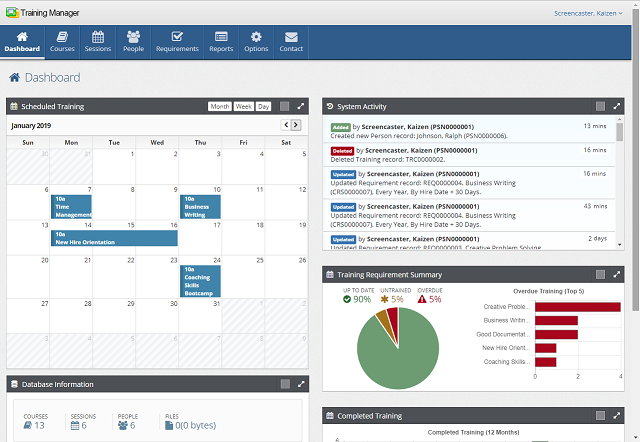
As most of you know, Training Manager allows you to configure required training for your personnel. In previous versions of Training Manager, these requirements were enforced “Immediately” meaning that as soon as you added a new employee to the database and assigned them to one of the Groups or Job Roles with assignments, they would immediately show up as “Overdue” on the status reports unless they had completed the training already.

Many of you contacted us and requested an option to define a “grace period” for new hires in order to give them a reasonable amount of time to complete the training before it would appear “Overdue” on the status reports. I’m happy to announce that this option is now available in the current version of Training Manager.

Now you may set the “Initial Training Due Date” when adding an Assignment as shown in this example:

New Assignment Form
New Assignment Form

As you can see, the initial training is due “By Hire Date + 30 Days”. The training status for the first 30 days will no longer appear as “Overdue”. Instead, it will appear as “Untrained” if it hasn’t been completed during the first 30 days. This lets you know that the training is required, but it is still within the grace period. The status will change to “Overdue” if it hasn’t been completed after 30 days, otherwise, it will change to “Up to date” after it has been completed.

We hope this feature will help to make the status reports more useful for your organization. Thanks to everyone who provided the feedback leading up to this enhancement.

Website Fail-Over In Place

The kzsoftware.com website was down for 3 hours last week due to a power outage at the data center hosting the site. A redundant server has been configured at an alternate datacenter in another state with automatic fail-over to prevent this problem from occuring again.

Faster Downloads

We have just finished moving our software downloads to Amazon’s CloudFront distribution network. This change will allow our customers around the world to download the software from the server closest to their location (*See below). Website visitors may click the download link, and the software will be automatically downloaded from the closest server.

We hope this will improve the download experience by improving the reliability of the downloads and making it much faster to download the software.

*Download servers are located in 14 Cities across 3 Continents:

United States

  • Ashburn, VA 
  • Dallas/Fort Worth, TX
  • Los Angeles, CA
  • Miami, FL
  • Newark, NJ
  • Palo Alto, CA
  • Seattle, WA
  • St. Louis, MO

Europe

  • Amsterdam
  • Dublin
  • Frankfurt
  • London

Asia

  • Hong Kong
  • Tokyo

Older Posts »